
Gardner
Gardner maps disk space and app resource use to help identify what is filling your Mac or keeping it busy. You can review storage blocks, clear files, uninstall apps, and quit selected apps from the same interface.
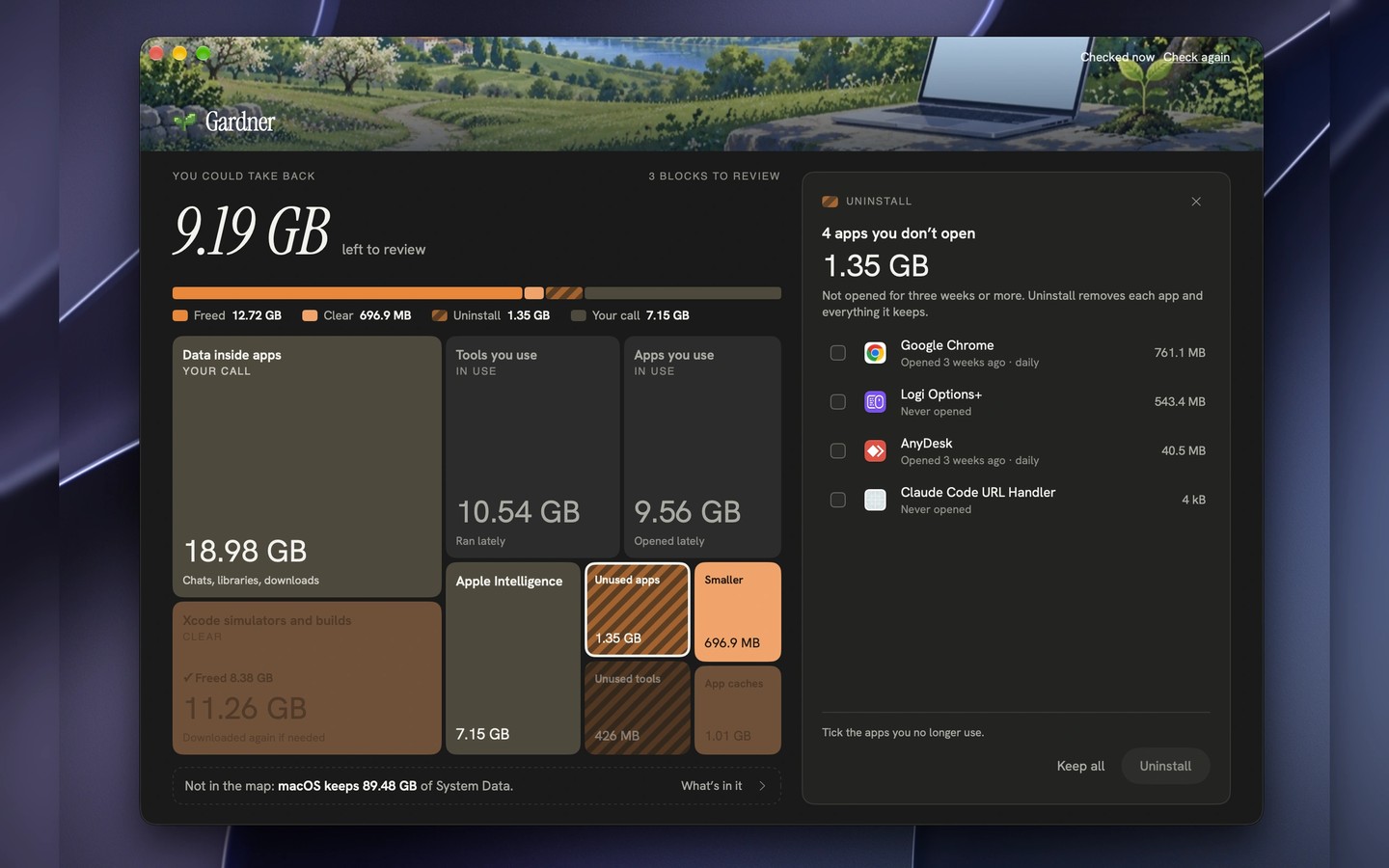
Gardner shows what is taking up disk space and which apps are using your Mac’s resources. Its Storage, CPU, Memory, GPU, and Ports tabs use a block map, with larger blocks representing a larger share of space or activity.
The storage map names and sizes items such as System Data, app caches, Xcode simulators and builds, and files left by deleted apps. Colours distinguish items Gardner can clear or uninstall from those that need attention in System Settings or another app. Nothing is removed until you choose an action.
Cleared files go to the Trash first and can be restored until permanently removed. Permanent actions require confirmation, and Gardner leaves macOS’s own files and processes alone. The live resource tabs group activity by app, letting you identify busy apps and quit them. The Ports tab shows which app is listening on a port and provides a Stop control.
Full Disk Access is needed to inspect device backups, Mail, and some app data. Without it, Gardner shows the areas it can inspect and identifies what it cannot see. It processes data on your Mac and only connects online to check the licence and look for updates. Nothing runs while the app is closed.
Tags
More in Utilities

Caffeine
Utilities
1Capture
Utilities