
Gamma Dimmer
Gamma Dimmer darkens screens using gamma adjustments, with an overlay option for displays that do not support them. It supports keyboard control and learns brightness differences between displays so they can be adjusted together.
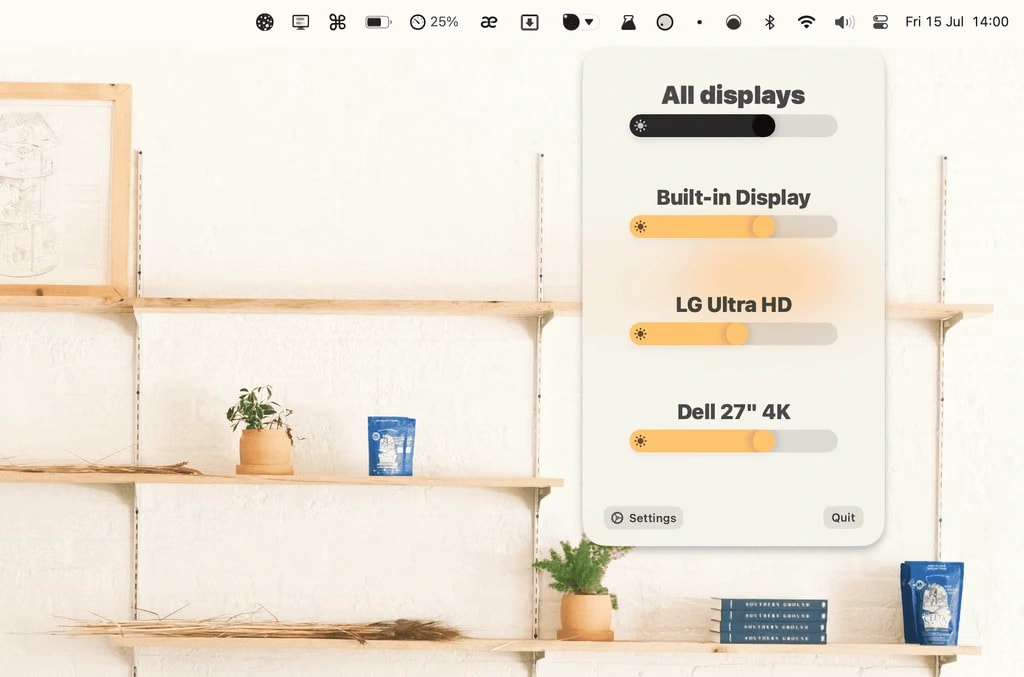
Gamma Dimmer reduces apparent screen brightness through software rather than changing a monitor’s hardware brightness. It normally adjusts each display’s RGB gamma tables to make the image darker, with a dark overlay as an alternative when gamma dimming is unavailable or another app is using gamma adjustments.
For multiple displays, you can first adjust individual screens to match their brightness. The All Displays slider learns those differences and keeps the screens in sync as you adjust them together. F1 and F2 control the active display, while holding Shift applies the adjustment to all displays.
Displays connected through DisplayLink, Luna Display, Sidecar, or AirPlay require overlay dimming. Overlays cannot dim fullscreen windows, and some mirrored or virtual display setups may not work even with an overlay. Gamma dimming does work with fullscreen windows.
Gamma adjustments can conflict with apps such as f.lux, Lunar, or Gamma Control. Color-profile issues can also cause a screen to go black, which may require reconnecting the monitor or restarting the Mac; switching to Overlay mode avoids gamma changes. Dimming may occasionally disappear after waking from sleep, in which case moving the slider or using the brightness hotkeys reapplies it.
Tags
More in Utilities

Plash
Utilities
Strata Mac Cleaner
Utilities