
MacClearings
MacClearings explains disk usage, including System Data, and stages unwanted files for review before moving them to the Trash. It measures cleaned folders again after a day, a week and a month to show what has grown back.
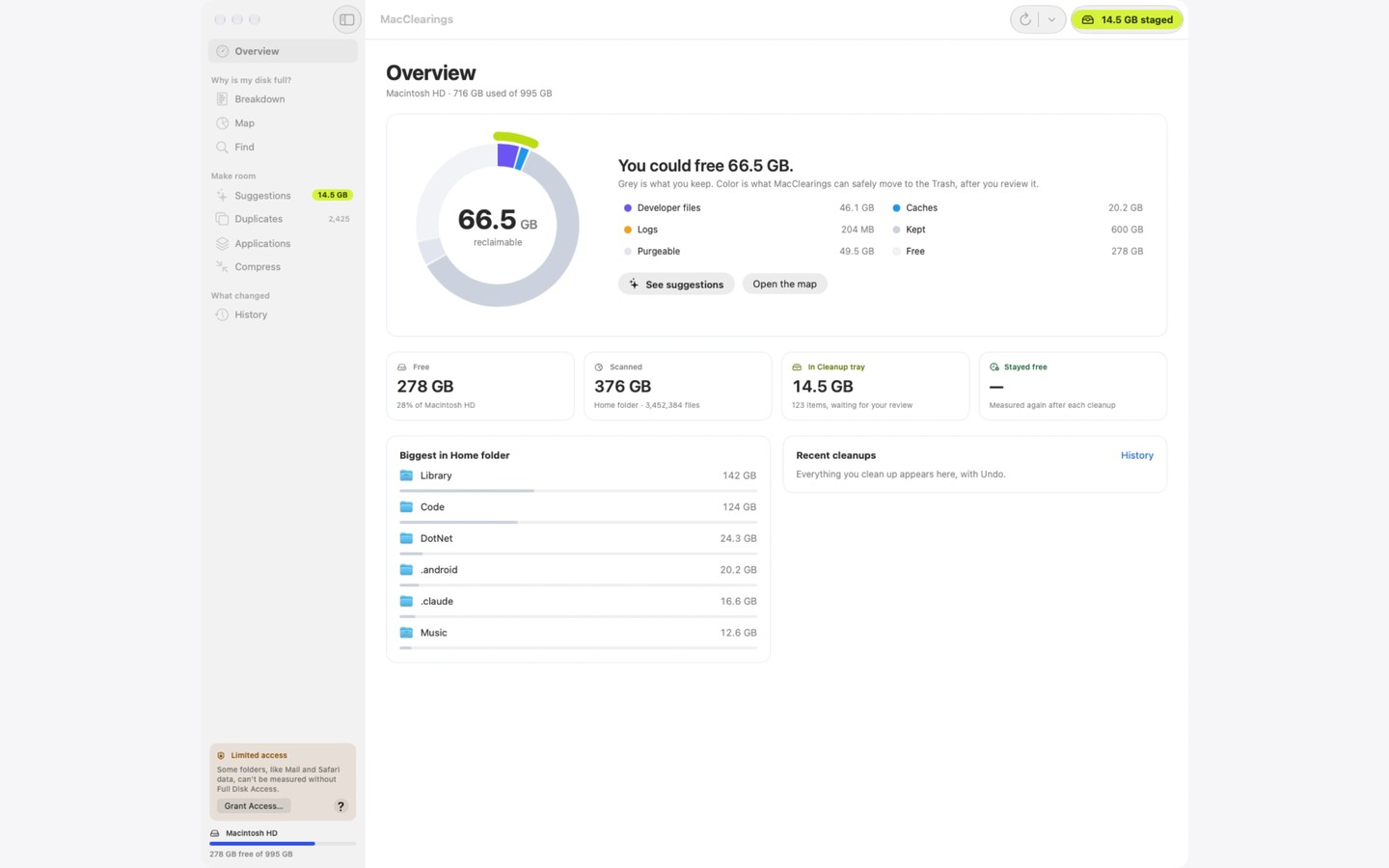
MacClearings analyzes disk usage and helps you choose what to remove. It breaks down the storage figures shown in System Settings, including System Data, into named items. Zoomable folder maps show where space is used, while a field guide explains familiar app and developer folders, whether they grow back, and what happens if you remove them.
Cleanup suggestions, duplicates and app uninstalls share one review tray that remembers staged items between launches. Each item is checked again before it moves; changed, open or protected items are skipped. MacClearings only moves reviewed items to the Trash and never empties it. Undo can restore a whole cleanup or an individual item while it remains in the Trash. Space becomes available when you empty the Trash yourself.
The duplicate finder always keeps at least one copy. App removal includes associated support files, and leftovers from previously removed apps are listed separately. Media compression creates smaller video and photo copies without replacing the originals; you can then stage an original for review. Developer-focused suggestions cover Xcode, simulators, package caches and build output, but build output in active projects is not selected automatically.
After a cleanup, MacClearings measures the cleaned locations again after a day, a week and a month. History shows how much data has returned, and suggestions are sorted by how much space stays free. Saved scan snapshots let you compare folder growth over time.
Full Disk Access is optional. Without it, some folders cannot be read, and the app shows the unmeasured amount with an explanation. macOS-managed swap, local Time Machine snapshots and purgeable space are explained rather than offered for cleanup. Scans, duplicate hashes, snapshots and history stay on your Mac.
Tags
More in Utilities

Permute
Utilities
Proton VPN
Utilities