
NameQuick
NameQuick uses AI to rename files based on their contents, such as the date, vendor and amount on an invoice. It can process batches or watch folders for new files, with automatic renaming or review before changes are applied.
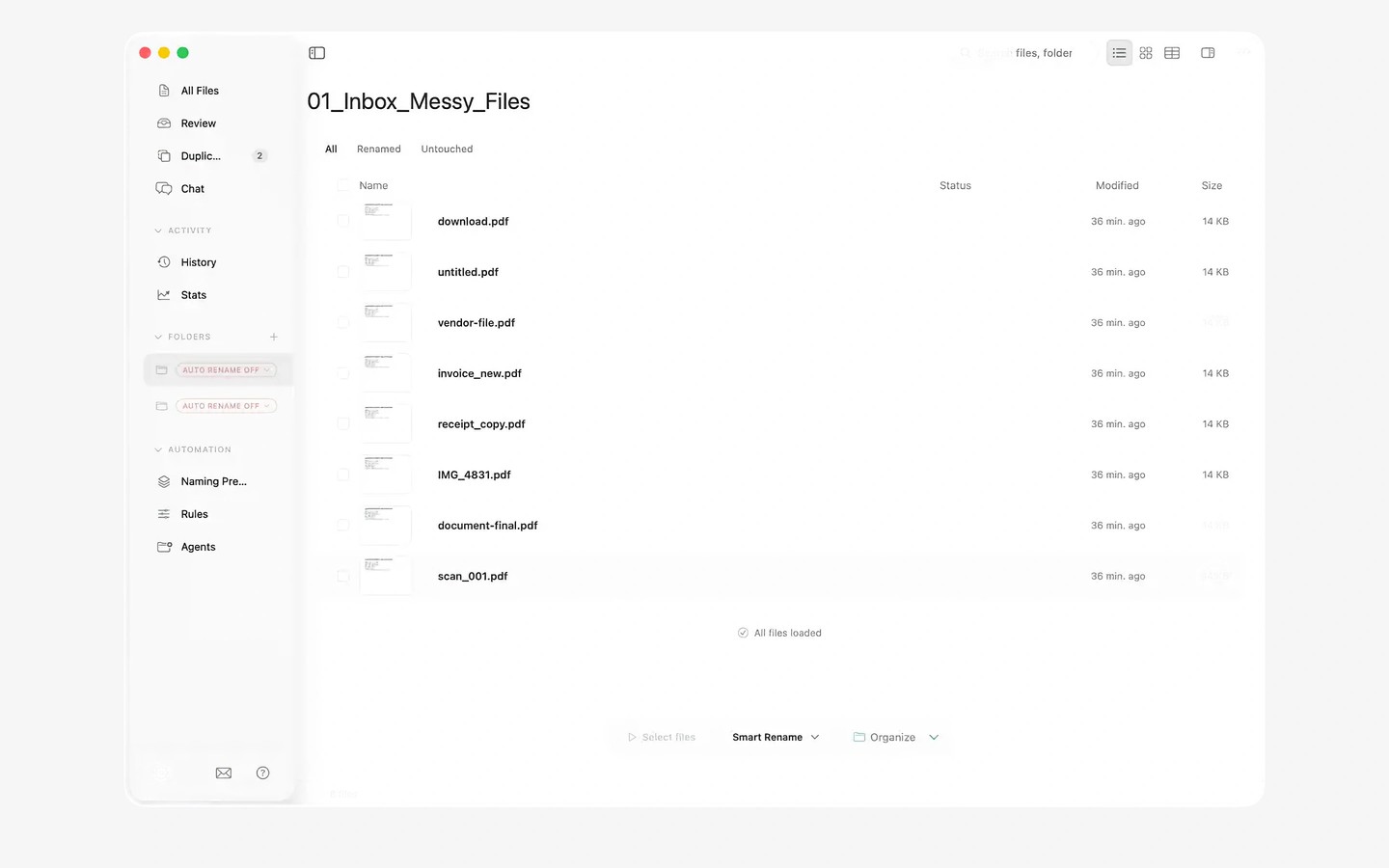
NameQuick renames files based on what is inside them rather than their existing filenames. It can use details such as a document’s date, vendor, amount and type to create descriptive names for invoices, receipts and scans. Supported formats include PDFs, photos, screenshots and Office files.
You can rename a batch of files or watch a folder, such as Downloads or a scanner inbox. Each watched folder can have its own naming preset. New files can be renamed automatically or held for approval. If a required date or amount cannot be read, the file waits for you to supply the missing information.
AI processing can use NameQuick’s managed service, your own API key for OpenAI, Anthropic, Gemini or OpenRouter, or a local model. The managed service sends file text or images to NameQuick’s EU servers; using your own key sends that content directly to the selected provider. Local processing through Ollama, LM Studio or MLX keeps files on your computer. Local models are slower than cloud processing, especially on Intel Macs, and smaller models produce simpler names. Photos and scans require a vision-capable model. MLX requires Apple Silicon and macOS 14 or later.
Rules can move or tag files after renaming, and NameQuick can write Finder tags and comments. It also offers content search and checks for exact duplicate files. Renaming otherwise leaves file dates and locations unchanged. History records old and new names so you can undo changes, though undo can fail if a file has since been moved or is open.
Tags
More in Productivity

Swish
Productivity
Butler
Productivity