
Moom
Moom moves and resizes windows using a pop-up palette, snap zones, or keyboard controls. Saved layouts can restore specific apps’ windows or arrange your most recently used windows regardless of app.
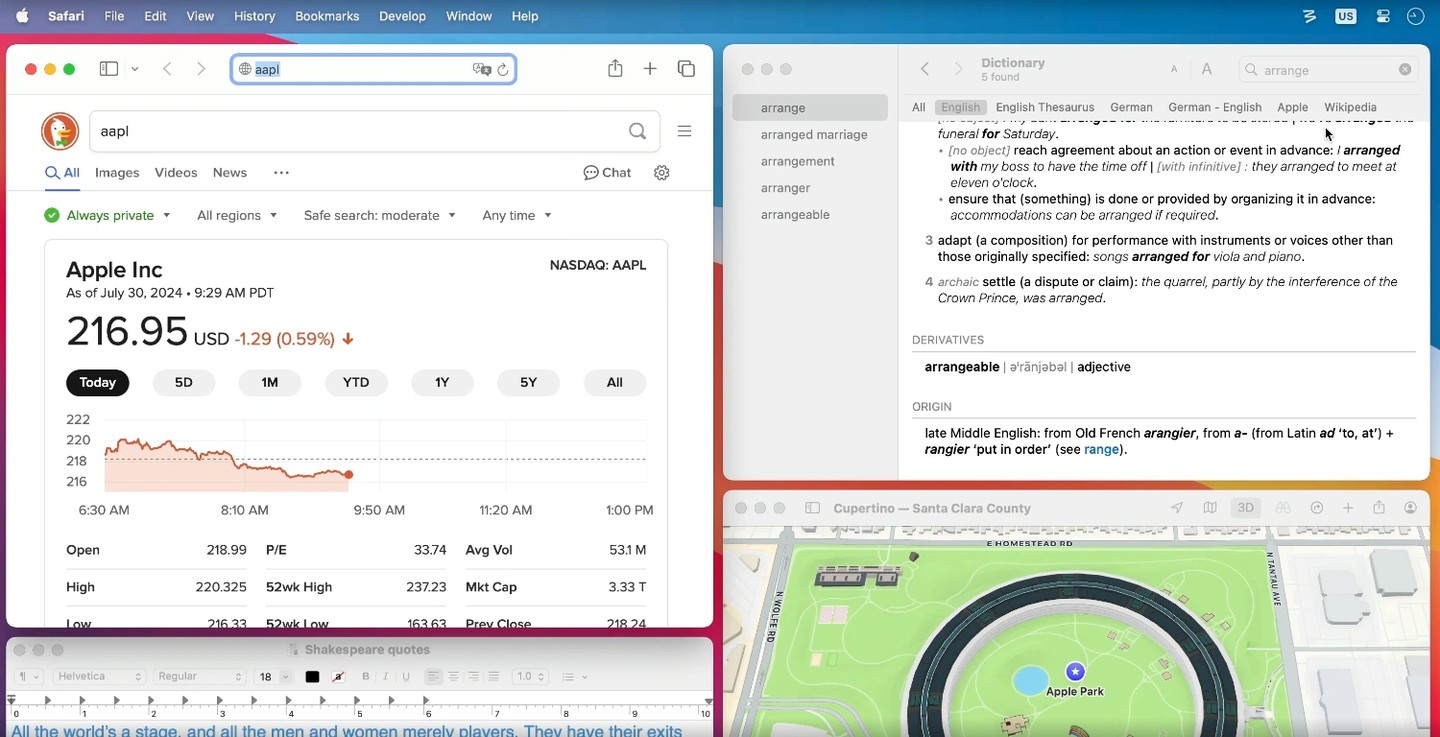
Moom helps you move, resize, and arrange windows. Hover over a window’s green, red, or yellow button to open a customizable action palette, or drag windows into snap zones to place them in chosen areas of the screen. Saved layouts can also provide outlined drop targets for individual windows.
You can save the arrangement of windows in specific apps and restore it later. Alternatively, an app-independent layout arranges your most recently used windows: a layout with five positions affects the five most recently used windows. Saved layouts attempt to adapt when used on displays of different sizes.
Keyboard controls let you move, resize, and center windows or place them using an on-screen grid. Custom actions can combine several steps, such as moving a window to another display and resizing it. They can also cycle through a sequence, with the current step tracked separately for each window or shared across all windows.
For mouse-based control without dragging, holding modifier keys lets you move or resize the window under the pointer, including background windows. Actions can be organized into folders and exported for use on another Mac. Moom can run in the Dock, menu bar, both, or as an invisible background app.
Tags
More in Productivity

Ulysses
Productivity
Hogwasher
Productivity