
Lunar
Lunar controls external monitor brightness, volume, and inputs from your Mac. It can sync brightness with a MacBook display, adjust it on a schedule, or respond to ambient light.
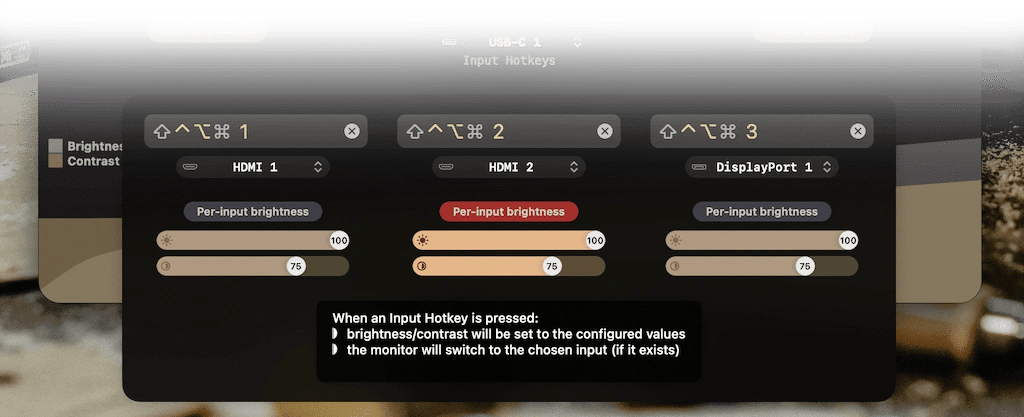
Lunar controls external monitors from your Mac, including brightness, contrast, volume, and input switching. On monitors that accept DDC commands, it changes the monitor’s hardware settings rather than simply darkening the image. It also provides native control for supported Apple displays and LG UltraFine displays for Mac.
You can use the keyboard’s brightness keys to adjust all displays together or just the monitor under the pointer. Volume keys control the active monitor, and custom hotkeys switch inputs. Sub-zero Dimming lets you continue dimming after reaching the screen’s normal minimum brightness.
Sync Mode makes external monitors follow brightness changes on a MacBook display, including automatic adjustments based on its built-in light sensor. Other modes adjust brightness and contrast using an external ambient light sensor, a daily schedule, or the sun’s position. The external sensor can also support setups with a MacBook’s lid closed.
BlackOut lets you selectively turn off displays with a hotkey. Auto BlackOut turns off a MacBook’s display when an external monitor connects and restores it when the monitor disconnects. Shortcuts integration and a command-line interface provide ways to automate display settings and layouts.
Hardware control depends on the monitor and connection. When DDC is unavailable, Lunar can darken the image through software gamma changes, but this does not change the backlight or control volume and inputs. DDC control of DisplayLink monitors requires a network-connected Raspberry Pi running a DDC server and connected to a spare HDMI port on the monitor.
Tags
More in Utilities

Tangrid
Utilities
iSkitch
Utilities