
rcmd
rcmd switches between apps using Right Command and letter keys, with custom assignments that can also launch apps. It also provides searchable window views and tools for managing windows across Spaces and displays.
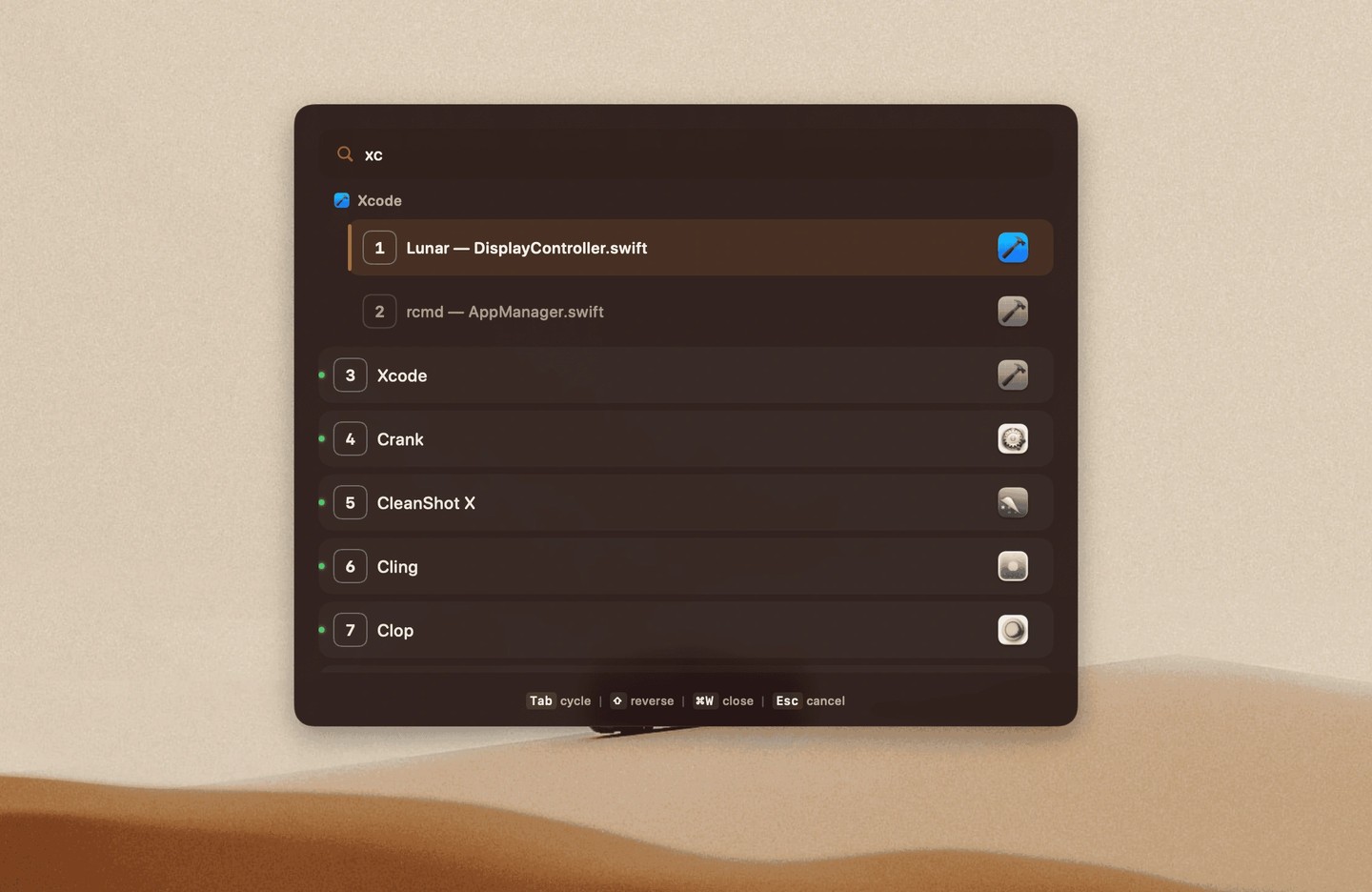
rcmd lets you switch between apps by holding Right Command and pressing the first letter of an app’s name. Letters are assigned dynamically, or you can assign your own shortcuts that also launch apps when they are not running. The trigger can be changed to another key or key combination, while Left Command remains available for normal macOS shortcuts.
Repeated presses of an app’s letter can hide it, cycle through its windows, or switch between apps sharing that letter. You can also search for apps using abbreviated names and pin a multi-letter query to a particular app.
Right Command–Tab opens a window grid for the current Space or Stage. An Exposé view brings together windows from every Space and display. You can search window titles and text visible inside windows, with text recognition handled on your Mac. Window actions include closing, minimizing, moving between displays or Spaces, and positioning windows in halves or thirds of the screen.
Lenses let you search and focus browser tabs, terminal panes, and editor projects in supported apps; none are enabled by default. Stages save groups of windows for later restoration from the menu bar or window switcher. Automation permission allows restored windows to reopen their previous pages or documents where supported; without it, windows may open empty.
Accessibility permission is required for keyboard input and window control. Screen Recording permission is used to read window titles, show thumbnails and live previews, and recognize text inside windows. rcmd captures individual windows rather than the whole screen and does not record video. Captured thumbnails and recognized text stay in memory on your Mac and are not sent elsewhere.
Tags
More in Productivity

Chitroll
Productivity
Hyperduck
Productivity